One IPTV Player for All Devices: Smart TV, Tablet, Phone and Computer
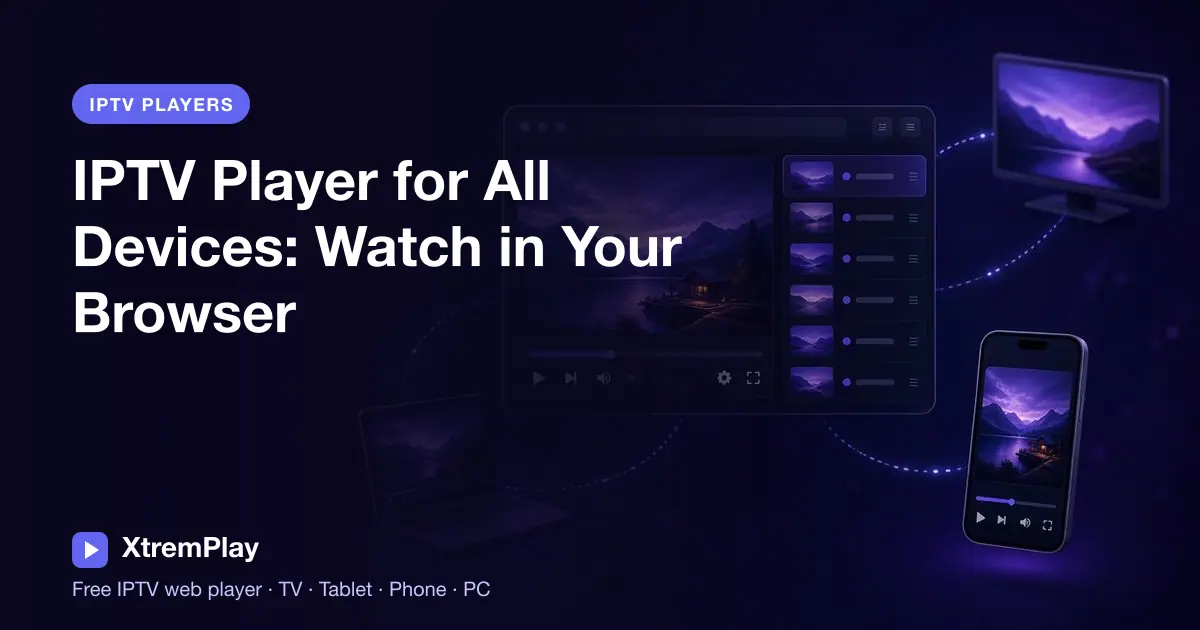
An IPTV player for all devices lets you open your compatible playlist in a browser instead of setting up a different player app for every screen. XtremPlay is a free web player that runs on Smart TVs, tablets, phones and computers, so you can use one browser-based option wherever you watch.
Key takeaways
- XtremPlay runs at xtremplay.com in supported device browsers, including Smart TV, tablet, phone and computer browsers.
- You can add content with Xtream Codes login details, an M3U or M3U8 playlist URL, or an M3U file upload.
- The player organizes supported content into Live TV, Movies and Series sections, with multiple user profiles.
- Use the device’s available browser; Amazon Fire TV and Firestick users can use Silk.
- XtremPlay is a player, not a channel or subscription provider. Use only content you are authorized to watch.
Why use one IPTV player for all devices?
Many households watch on more than one screen. You might prefer a television in the living room, a tablet while travelling, or a computer when you are working at a desk. Installing and learning a separate player for each device can make setup harder than it needs to be. A cross-device IPTV player offers a browser-based alternative: open the player on a compatible screen and use your own playlist or login.
XtremPlay is a free IPTV web player at xtremplay.com. It works in browsers on Smart TVs, tablets, phones and computers, including Samsung Tizen, LG webOS, Android TV and Google TV browsers, Amazon Fire TV and Firestick, Windows, Mac, Linux and Chromebook. That makes it a practical option for people looking for IPTV on TV tablet and phone without treating every screen as a separate setup.
Because it is browser-based, you do not need to start by installing a traditional IPTV player app. If you want to understand the format first, read what an IPTV web player is. For a broader look at choosing a player, see how to choose an IPTV player.
Which browser to use on each device
Start with a browser available on your device and open XtremPlay there. Browser names and availability can differ by model, region and software version, so if one browser does not work as expected, try another supported browser available on that device. The table is a practical starting point, not a guarantee that every browser version or device model behaves identically.
| Device | Browser to try | Practical note |
|---|---|---|
| Samsung Smart TV | The TV’s built-in browser | Samsung Tizen is supported. Use the remote-friendly mode when navigating on the television. |
| LG Smart TV | The TV’s built-in browser | LG webOS browsers are supported. If controls feel awkward, check that TV remote-friendly mode is available. |
| Android TV or Google TV | A browser available on the TV | Open the player in the browser you have installed or can access on the device. |
| Amazon Fire TV or Firestick | Silk browser | Use Silk to visit the player in your Fire TV browser. |
| iPad or Android tablet | A browser already available on the tablet | A larger touchscreen can make browsing lists and sections more comfortable. |
| Android phone or iPhone | A browser available on your phone | For frequent access, you can add the player to your home screen as a web app. |
| Windows, Mac, Linux or Chromebook | A browser available on the computer | Use the larger display for browsing and playlist setup; an optional Chrome extension is also available. |
For device-specific tips, explore the guides for using IPTV on a Smart TV and using IPTV on Fire TV. If you are comparing web-based options, the online IPTV player and online M3U player pages explain related player uses.
What you need before you start
A player displays content from a playlist or service you provide; it does not supply channels by itself. Before opening XtremPlay, make sure you have a playlist or login that you are authorized to use where you live. XtremPlay does not provide channels or subscriptions, and you should check the rights and terms associated with your source.
XtremPlay accepts three setup methods. Choose the one that matches the details from your authorized provider or playlist source:
- Xtream Codes login: enter the server URL, username and password.
- M3U or M3U8 URL: provide the playlist URL in the player.
- M3U file upload: select an M3U playlist file stored on your device.
If you have an M3U file that needs a format adjustment, try the free M3U converter. The M3U playlist editor can help you edit a playlist file. These tools do not provide content or authorization; they are for working with playlist data you are entitled to use.
Set up XtremPlay on a new screen
The same basic process applies whether you are setting up IPTV on TV tablet and phone or moving from a computer to a television. Your device’s browser and remote or touchscreen change how you navigate, but you still need your own supported login or playlist.
- Open the browser. On a television, find its browser in the device menu; on Fire TV or Firestick, use Silk. On a phone, tablet or computer, open a browser you already use.
- Visit XtremPlay. Go to xtremplay.com and choose the login method that matches your details.
- Enter your information carefully. For Xtream Codes, check the server URL, username and password. For a playlist, use the M3U or M3U8 URL, or upload your M3U file.
- Open a section. XtremPlay organizes available items into Live TV, Movies and Series sections. What appears depends on the playlist or service you supplied.
- Adjust how you navigate. On a television, use TV remote-friendly mode if you are controlling the player with a remote. On a touchscreen, tap the menu and list items.
For more details about one login type, see the Xtream Codes online player page. If your playlist does not load, the stream checker can help you investigate supported stream links and playlist issues.
Move between your TV, tablet, phone and computer
A multi-device IPTV setup is most useful when it fits the way you already use your screens. You could use a TV browser at home, then open the player on a tablet or phone when a smaller screen is more convenient. On a computer, a keyboard and larger display may make it easier to review playlists. XtremPlay runs in the browser on these device categories, so you can choose the screen that suits the moment.
XtremPlay also supports multiple user profiles. Profiles can make it easier for different people using the player to keep their player experience organized. They do not replace a provider account, create a subscription, or grant permission to view content. For a shared TV, agree on whose authorized playlist or login is being used and avoid saving private details on a device other people can access.
If you want quicker access on a phone or tablet, XtremPlay can be added to the device home screen as a web app. It remains browser-based; adding it to the home screen does not turn it into a service that supplies channels. Computer users can also consider the optional Chrome extension. If you are deciding between a browser and a dedicated app, read the benefits of an online IPTV player and compare the considerations in IPTV app versus web player.
What to expect—and what the player does not do
A browser player can simplify access across devices, but the experience still depends on the device browser, your network and the source playlist or service. A playlist that opens on one screen may not behave the same way on another. If a stream fails, check that the source is available, the URL or credentials are correct, and the device is connected to the internet before changing settings.
XtremPlay includes a built-in proxy so HTTP streams can play on its HTTPS site. It also has a TV remote-friendly mode, multiple user profiles, and the option to add it to a home screen as a web app. Those features are intended to make the player more practical across browsers and screen types; they do not guarantee that every stream, device or browser combination will work.
There are also important limits to know about before choosing a player. XtremPlay has no EPG grid yet, and it does not offer recording or catch-up. It does not provide channels or subscriptions. If a programme, channel or playlist is not included in the source you are authorized to use, the player cannot add it. For legal public playlist examples, visit the free public legal playlists page and check the source’s terms and availability.
Troubleshooting common cross-device problems
If playback or navigation differs between your phone and television, troubleshoot one variable at a time. Testing the same playlist on another device can help you tell whether the issue is related to the source, the browser or the device. A cross-device IPTV player gives you the option to compare, but it cannot fix a playlist that is offline or incorrectly entered.
- Login fails: recheck the server URL, username and password, including spaces and punctuation. Confirm the details are current with the authorized source. For more guidance, see common Xtream Codes login errors.
- A playlist does not appear: confirm that you chose the correct input method and that the URL or uploaded file is the playlist you intended to use. An M3U and an M3U8 URL are not the same thing as a login.
- A stream does not open: check that the source is available and that you are permitted to watch it. You can use the stream checker as a diagnostic aid, but a check cannot make an unavailable stream work.
- Remote navigation is difficult: enable TV remote-friendly mode where available, and try moving through the interface with the television remote rather than a connected touchscreen.
- The browser behaves unexpectedly: reload the player, check for browser updates and try another browser available on the device. Results can vary by device model and browser version.
For more options and comparisons, browse the best IPTV players in 2026 guide. Compare features against what you actually need, especially if you rely on features such as an EPG grid, recording or catch-up.
Conclusion: one browser player across your screens
If you want one IPTV player for all devices, a browser-based player can reduce the need to set up a different player on every screen. XtremPlay works in browsers on Smart TVs, tablets, phones and computers, with support for Xtream Codes login, M3U and M3U8 URLs, and M3U file uploads. It includes TV remote-friendly mode and multiple user profiles, while keeping login details in the user’s browser.
Bring your own authorized content and try the free XtremPlay player at xtremplay.com. Open it on your Smart TV, tablet, phone or computer, choose your login or playlist method, and see how it fits your everyday viewing. Remember that XtremPlay is a player—not a channel provider—and it currently has no EPG grid, recording or catch-up.
Frequently asked questions
Can I use one IPTV player on my TV, tablet and phone?
Yes. XtremPlay runs in browsers on Smart TVs, tablets and phones, as well as Windows, Mac, Linux and Chromebook computers. Use a browser available on each device.
Which browser should I use for XtremPlay on a Smart TV?
Start with the browser available on your Smart TV. XtremPlay supports browsers on Samsung Tizen, LG webOS and Android TV or Google TV devices; availability and behavior can vary by model.
Does XtremPlay provide IPTV channels or a subscription?
No. XtremPlay is a free web player and does not provide channels or subscriptions. You need a playlist or login for content you are authorized to watch.
What playlist formats and login types does XtremPlay support?
XtremPlay supports Xtream Codes login using a server URL, username and password, M3U or M3U8 playlist URLs, and M3U file uploads.
Can I save XtremPlay to my phone or tablet home screen?
Yes. XtremPlay can be added to a device’s home screen as a web app for convenient access. It still runs as a browser-based player.
Does XtremPlay include an EPG, recording or catch-up?
No. XtremPlay does not currently have an EPG grid, recording or catch-up. What you can watch depends on the authorized playlist or service you provide.